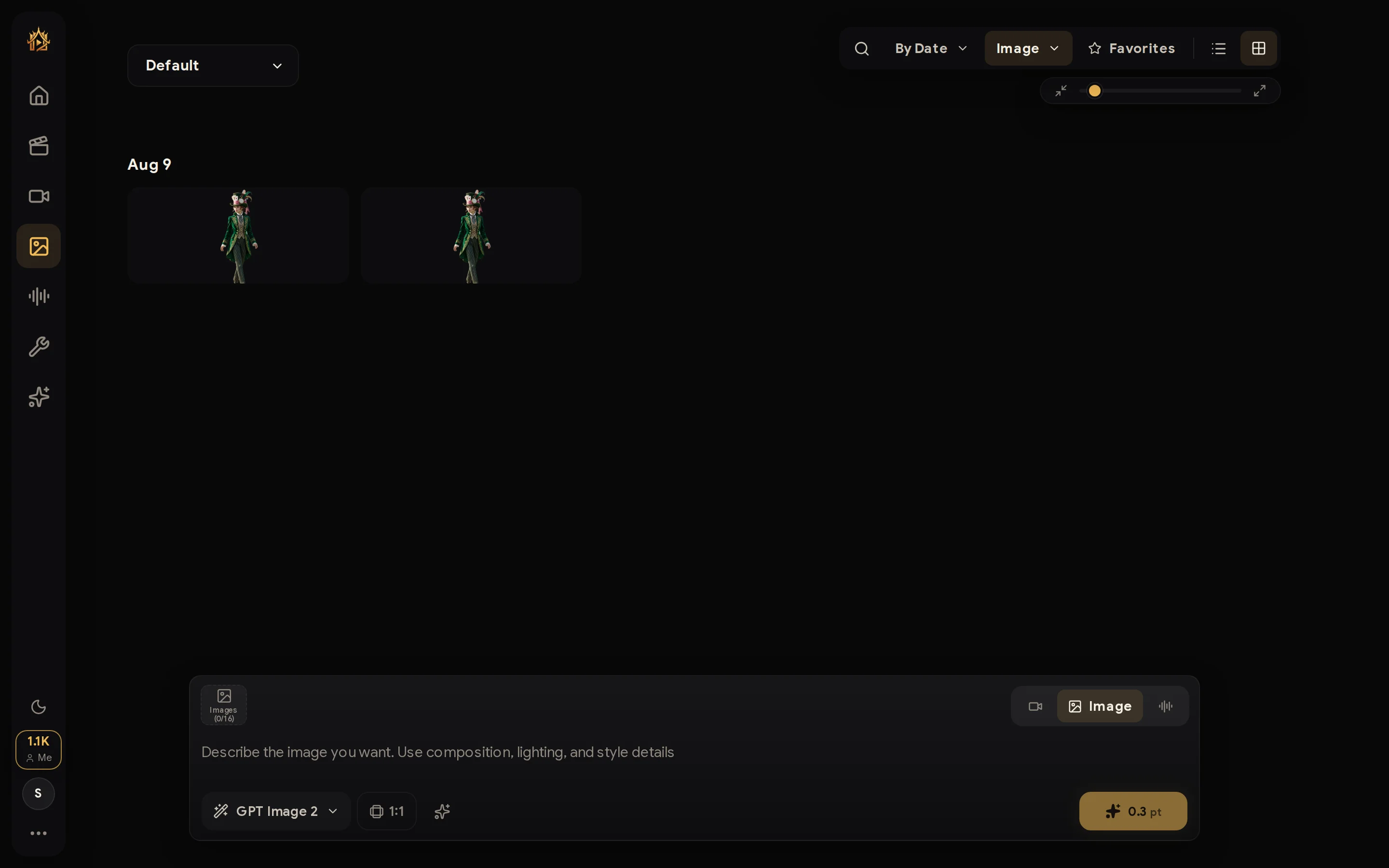
Remove Background
Cut the subject out of any photo into a transparent PNG — hair and fine edges included.
Remove Background cuts the subject out of any photo and returns a transparent PNG — hair, fine edges, and semi-transparent detail included. Results are also saved to your Workspace, so you can reuse the cutout in the Canvas or Studio.
Open the tool
Go to Tools → Remove Background. The right side shows a quick preview of what the tool does; your controls are in the left panel.
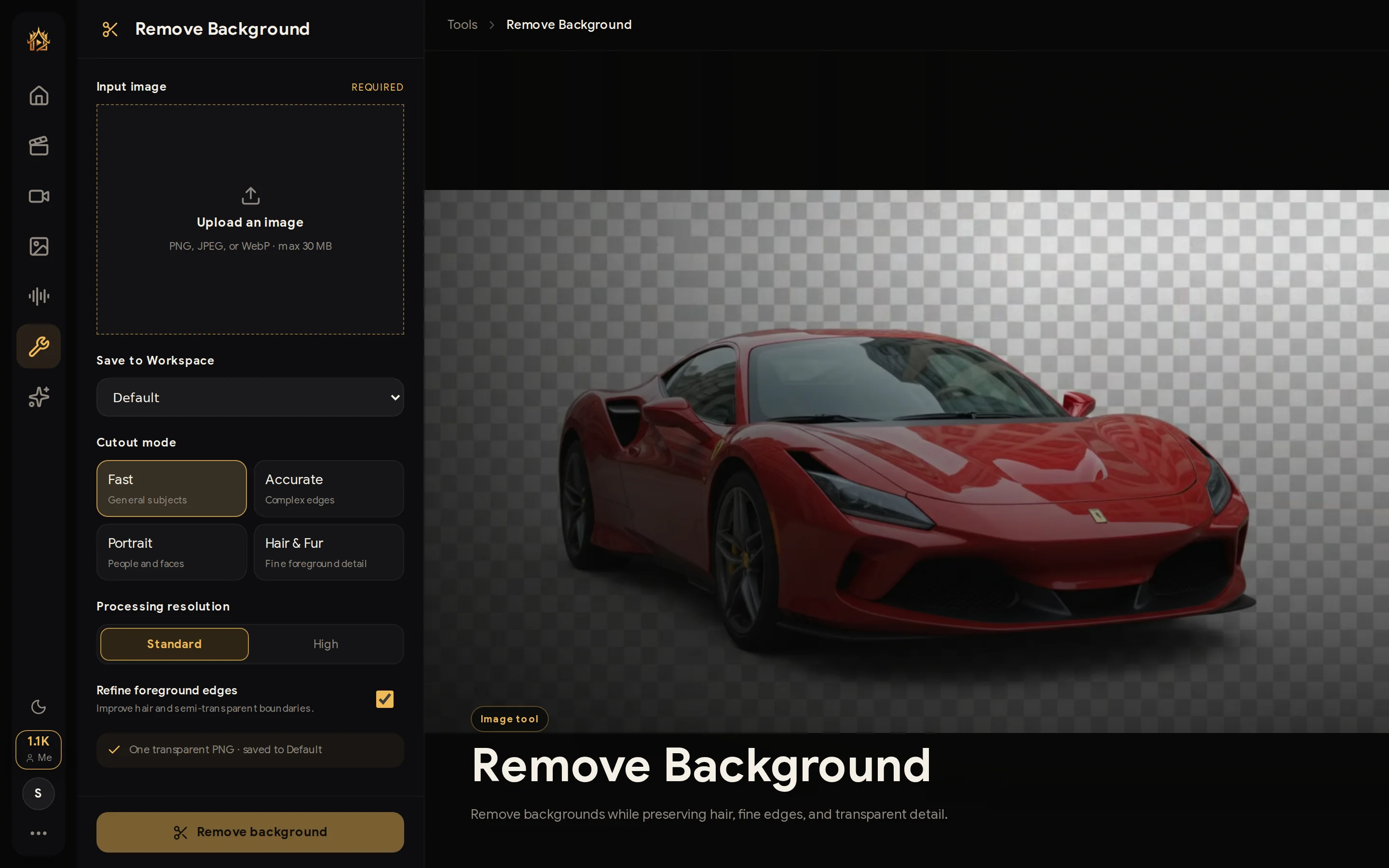
1. Upload your image
Click Upload an image and pick a PNG, JPEG, or WebP up to 30 MB. A preview appears in the panel once it is selected.
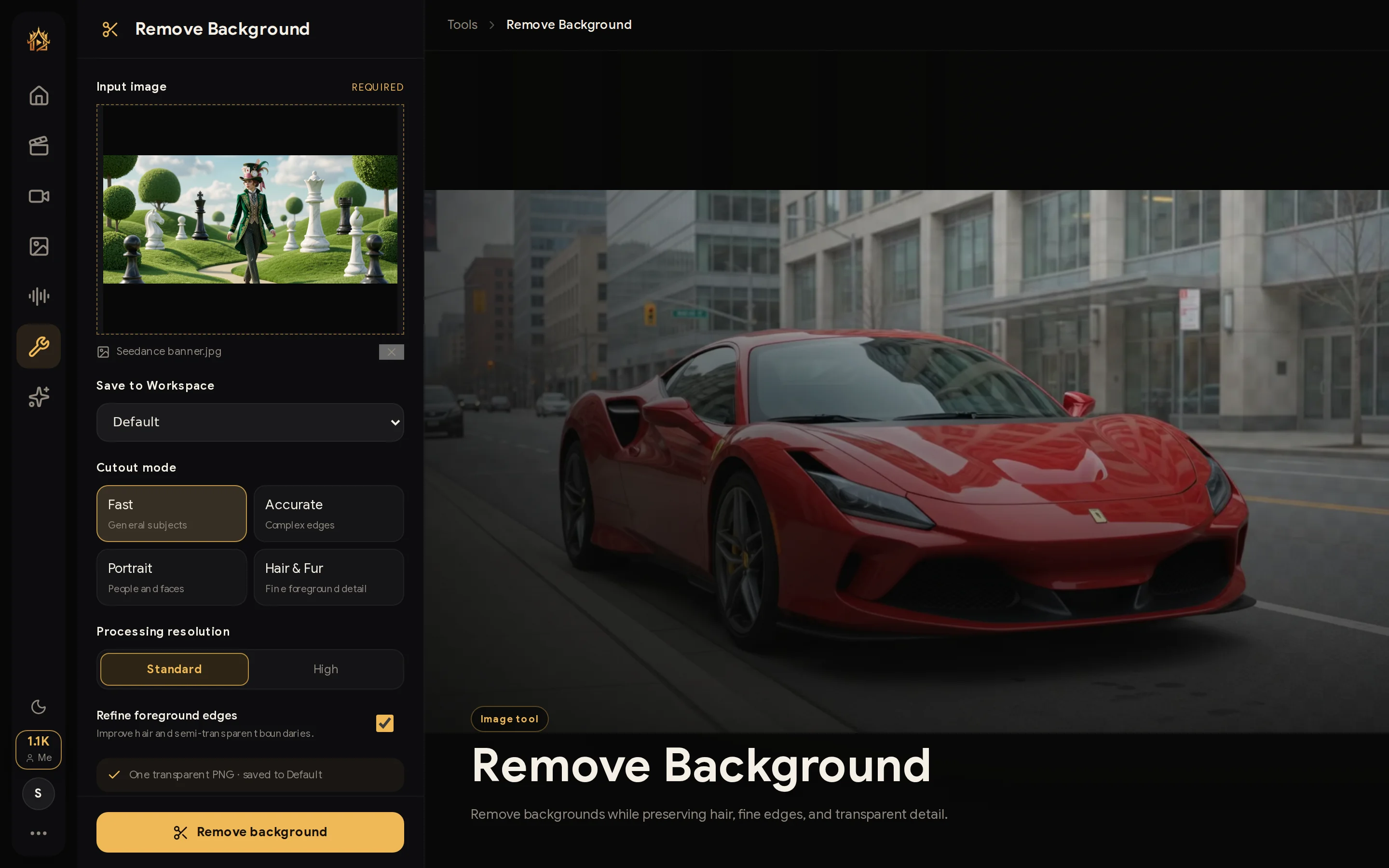
2. Choose a cutout mode
Pick the mode that matches your subject:
| Mode | Best for |
|---|---|
| Fast | General subjects, quickest result |
| Accurate | Complex edges and detailed outlines |
| Portrait | People and faces |
| Hair & Fur | Fine foreground detail like hair strands |
You can also switch Processing resolution to High for large source images, and keep Refine foreground edges on for cleaner boundaries.
3. Run it
Press Remove background. Processing usually takes under a minute; the output preview shows the transparent checkerboard while it works.
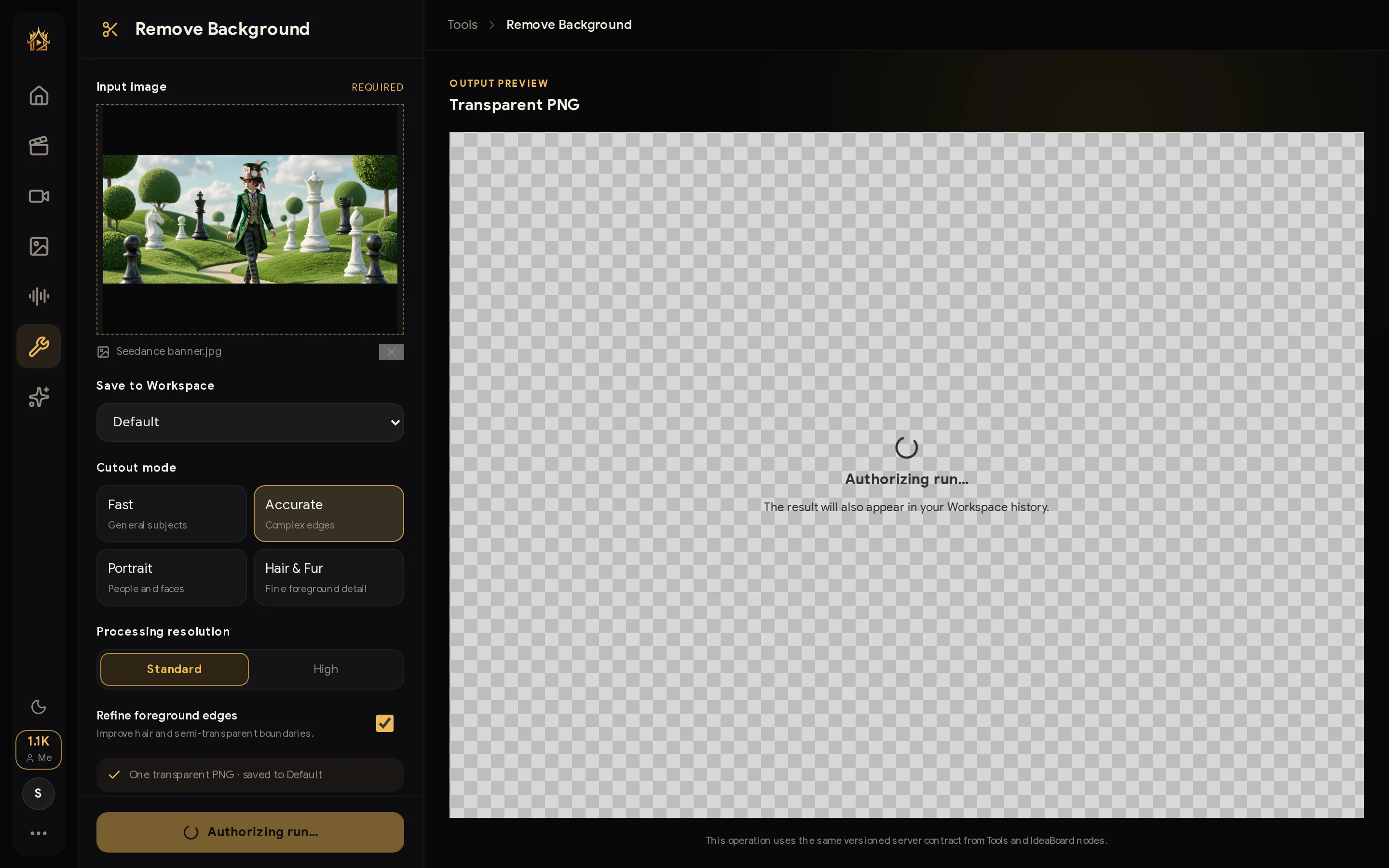
4. Download or reuse the result
When the cutout is ready you can Download the transparent PNG right away.
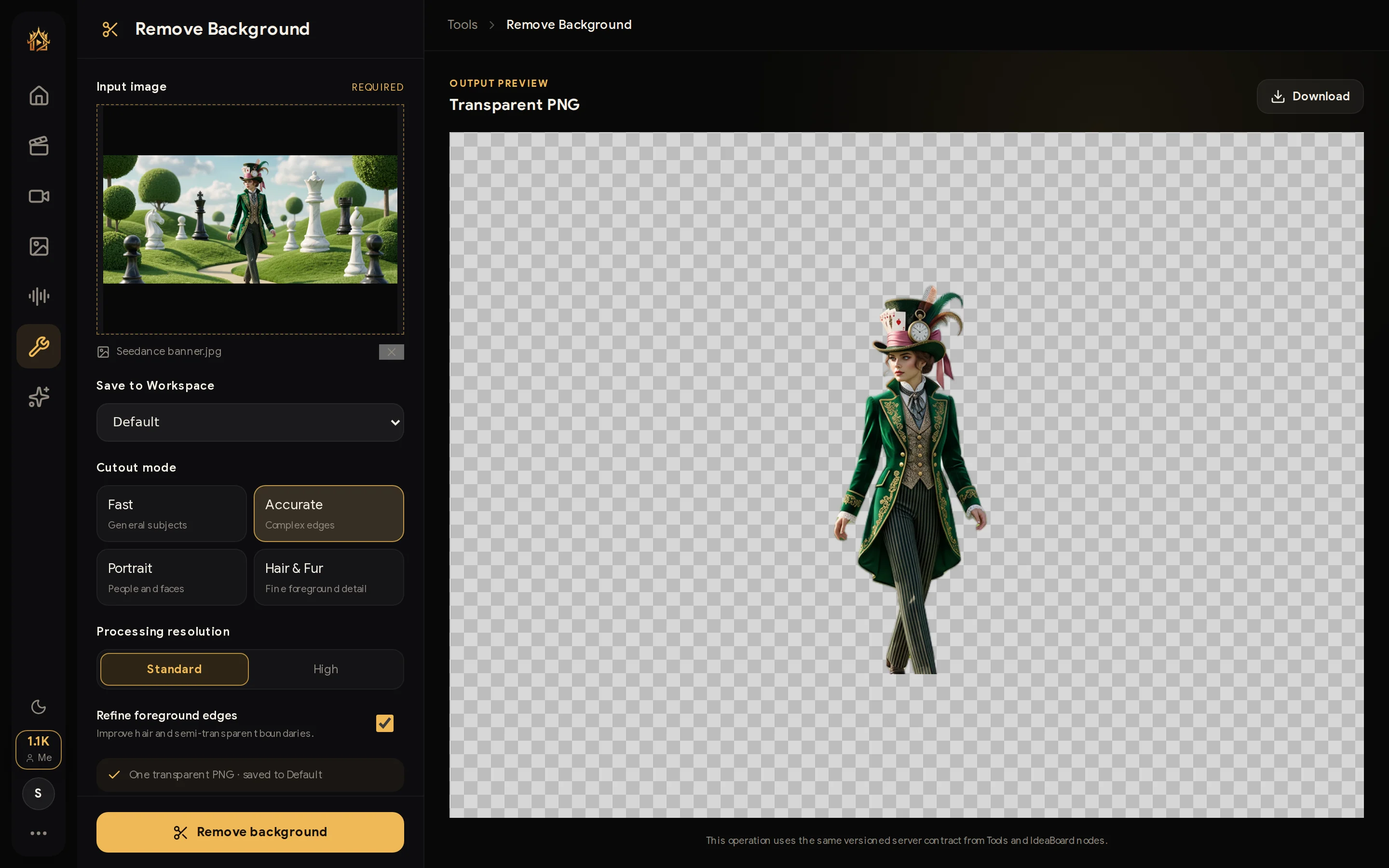
The result is also saved to your Workspace history (the folder you chose in Save to Workspace), so it is ready to use anywhere else in Siamshort.